Pair a display
Pairing registers the display with the conductor and switches it to managed mode — no restart needed; the conductor link starts immediately. Only displays paired this way can connect — the conductor refuses every other device, including one that knows a display’s hardware ID.
Pair via QR
Section titled “Pair via QR”- Sign in to the conductor Control Room and open Pairing → pairing page
(
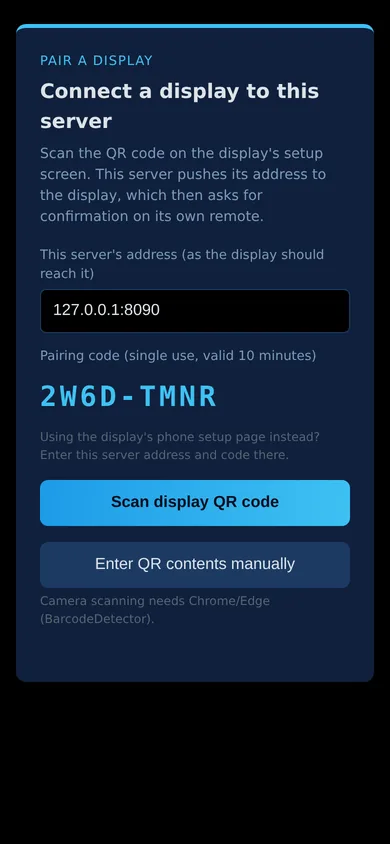
/pair.html) on a phone. It shows a one-time pairing code (single use, valid 10 minutes). - On the display, run Screensemble Performer and choose conductor mode in the setup wizard — it shows a QR code.
- Tap Scan display QR code and point the phone at the TV.
- The TV asks “Allow this conductor to manage the display?” with the conductor’s name — press Pair on the remote.
- The display receives its device token, flips to managed mode, and appears online on the Control Room.
Pair from the display’s phone setup page
Section titled “Pair from the display’s phone setup page”No camera? Open the display’s setup page on a phone (the link under its QR code), choose conductor mode, enter the conductor address and the pairing code from the conductor’s Pair page, and tap Pair. Confirm on the TV as above.
What pairing does
Section titled “What pairing does”- Checks both sides: the conductor must identify as a Screensemble conductor and each side’s minimum version must be met before the TV is asked.
- Anchors the display to a hardware-derived ID (salted hash of the primary MAC), so reinstalls and data wipes rebind to the same entry.
- The conductor issues a random per-device token after the on-TV confirm. It is verified on every connection and media download; a display without the right token is rejected.
Re-pairing and unpairing
Section titled “Re-pairing and unpairing”- To move a display to another conductor, or after removing it from the Control Room, reset the performer in its addon settings and pair again.
- Removing a display on the Control Room disconnects it and invalidates its token. Clearing the conductor address in the performer settings drops it back to Local mode; it keeps its content.